NTE Launch FAQ
Neverness to Everness>Intel>News
2026.04.27
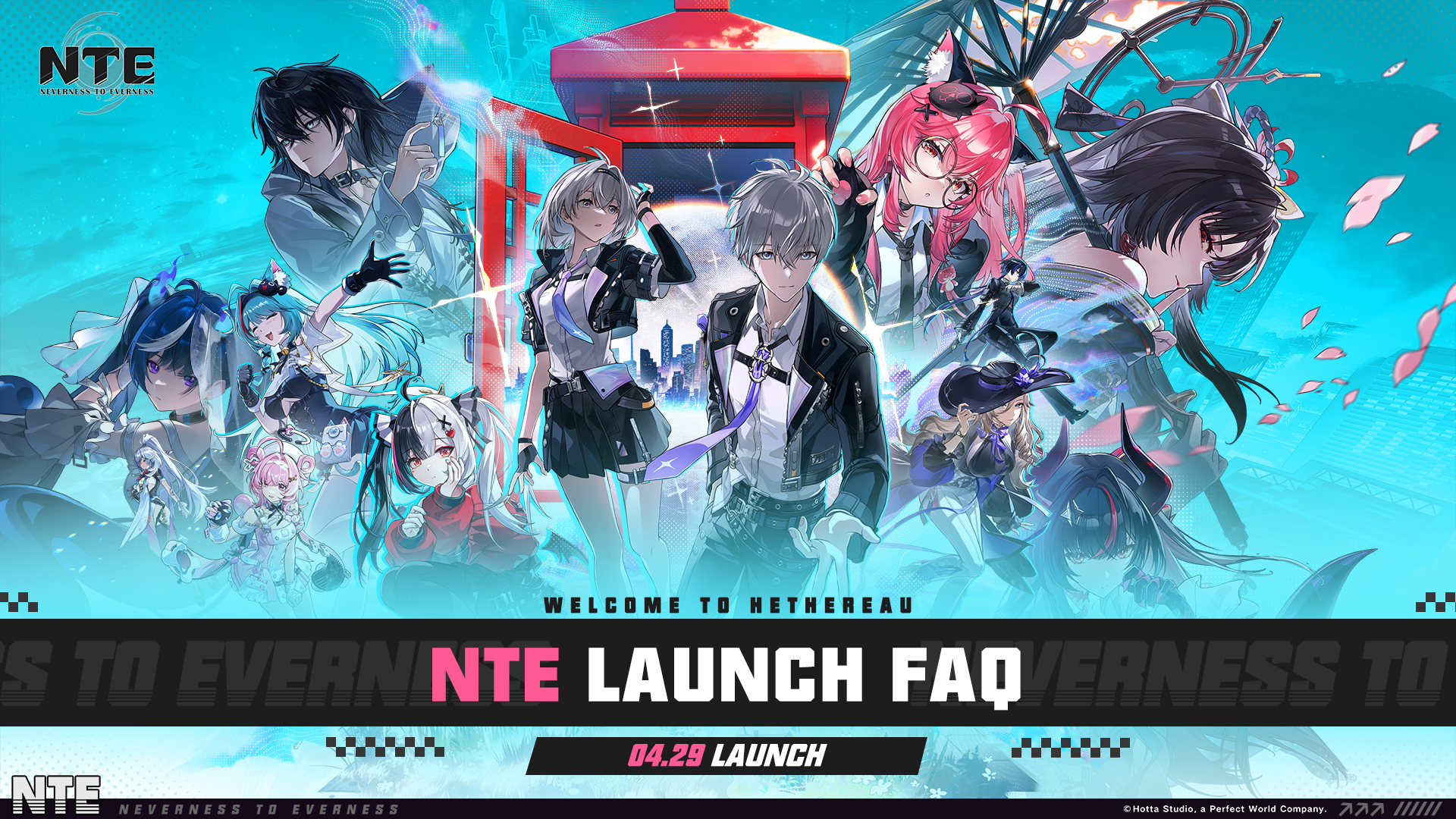
NTE officially launches on April 29 at 11:00 (UTC+8). Welcome to Hethereau, Appraiser!
To help your adventure in Hethereau get off to a smooth start, we've put together answers to some of the most common questions.
Launch Info
Q: When does NTE launch?
A: NTE goes live on April 29 at 11:00 (UTC+8). The game will be available on Windows PC, App Store (iOS), Google Play (Android), Apple Mac, Google Play PC, PlayStation®5, and PlayStation®5 Pro. Your account progress carries over seamlessly across every platform.
Q: What are the system requirements?
A: >> Recommended Specs <<
PC: Intel Core i7-12700 (12th Gen) or above; NVIDIA GeForce RTX 3060 / AMD Radeon RX 6700 or above
Android: Snapdragon 8 Gen 2, Snapdragon 8 Gen 3, MediaTek Dimensity 9200, or above
iOS: iPhone 14 Pro or newer; iOS 17.0 or later
>> Minimum Specs <<
PC: Intel Core i7-10700 (10th Gen); NVIDIA GeForce GTX 1660 / AMD Radeon RX 5600
Android: Snapdragon 855, MediaTek Dimensity 8000, or equivalent
iOS: iPhone 12 Pro Max; iOS 15.0
>> System & Storage <<
Windows: Windows 10 64-bit or later; at least 60GB of free space (with an additional 60GB temporarily required during file extraction)
iOS: iOS 15.0 or later; at least 20GB of free space
Android: Android 10.0 or later; at least 20GB of free space
Q: How many servers does NTE have, and is account data shared between them?
A: NTE has four servers: Asia, America, Europe, and SEA. Each server is independent, and progress is not shared between them. For example, your data on the America server stays separate from your data on the Europe server.
We recommend choosing the server closest to your region for the most stable, responsive experience.
Client & Login
Q: How do I download NTE?
A: Download and install through the official channel for your platform:
- Windows PC, App Store, and Google Play users:
Download from the official link >> https://nte.onelink.me/RX86/ntesnsow
- Apple Mac, PlayStation®5, and PlayStation®5 Pro users:
Visit the storefront for your platform and search for "NTE" to download and install.
*Cross-Play: Your progress syncs across Windows PC, Mac, PlayStation®5, iOS (App Store), Android (Google Play). Just sign in with your PWG Account on any device to pick up where you left off.
Q: What login methods does NTE support?
A: NTE supports PWG Account login on every platform, plus third-party authorization on select platforms. Available login methods by platform:
- iOS / Mac: Facebook, Google, Sign in with Apple, or email
- Windows PC: Facebook, Google, or email
- PlayStation®5 / PlayStation®5 Pro: PSN or email
*Important: Accounts created with different third-party logins are kept separate and don't share data. Make sure to remember which login method and provider you used.
Events & Rewards
Q: What pre-launch rewards are available?
A: All Global Pre-Registration and Official Social Media Follower milestone rewards have been unlocked! Pre-register, then log into the game at launch to claim Beetle Coins x30,000, Elite Hunter Guides x20, Fabricated Dice x20, A-Class character Haniel x1, the "Officer Whisker" glider livery, and more.
If you took part in the "Hethereau Residents Guide" web event, the items you claimed there will be delivered straight to your in-game mailbox. Check out the event here >>> https://pwgam.es/3NYcwSH
*All rewards will arrive in your in-game mailbox and can be claimed once the mail feature unlocks.
More limited-time events and rewards will roll out in-game after launch. See the full lineup here >>>
https://nte.perfectworld.com/en/article/news/gameevent/20260422/261900.html
Download & Installation
Q: I'm trying to update on iOS, but the game says I don't have enough space even though my storage shows plenty available. What's going on?
A: iOS handles cache and temporary unpacking space in ways that can throw off this estimate. The free space your phone reports doesn't always match what's actually usable for unpacking the update. Please try the following:
1. Restart your device to clear the system cache and refresh available storage.
2. Download any app and wait about five minutes to trigger a storage recalculation.
3. Redownload the game files. Once your available space refreshes, the update should complete normally.
Q: Can I update directly using my beta-test launcher or app from before?
A: No. To make sure your trip to Hethereau goes smoothly, please fully uninstall any previous version of the game and follow the official instructions to download the latest launch client.
Q: When choosing an install path on PC, I get the error: "Unable to install to the selected directory. Game path does not support non-English characters."
A: Please pick an installation path that uses only English characters, then try again.
Q: My PC download fails with "Insufficient disk space. Please free up the disk and try again."
A: NTE needs at least 60GB of free space to install (with another 60GB temporarily required during file extraction). Check how much room you have on your install drive. If space is tight, free some up or pick a different drive, then reopen the launcher and run the update again.
Q: My PC download shows "Downloaded file failed verification. Click the main button to retry." How do I fix this?
A: Click the button to retry as prompted. If it keeps failing, restart the NTE launcher or download the game again.
Q: My download speed is stuck at 0, or it freezes at a certain point and won't continue. What can I do?
A: Try the following:
1. Check your network setup, including any VPN, proxy, or hosts file. (For example, your VPN may be blocking the NTE launcher's connection.)
2. Restart your computer, or right-click the launcher and run it as administrator.
Q: The launcher can't update or download the latest game patch. How do I fix this?
A: Check your network setup, including any VPN, proxy, or hosts file. (For example, your VPN may be blocking the NTE launcher's connection.)
Q: While running the PC client, I get a "program not responding" error. How do I fix this?
A: Try restarting your computer or reinstalling the launcher.
Performance & Crashes
Q: I get "Resource file download failed or network error. Please try again" when launching the PC client. How do I fix this?
A: Try the following:
1. Restart the launcher, or click "Repair files > One-click repair" in the top-right corner of the launcher to repair your files.
2. If the repair doesn't resolve the issue, uninstall the launcher, delete the game files, and reinstall the launcher.
Q: Why is the PC client so slow to start up and load?
A: For the best experience, we strongly recommend installing the game on a solid-state drive (SSD).
Q: I downloaded the game on mobile, but it crashes the moment I open it. How do I fix this?
A: Uninstall the app and download it again. While the game is downloading and updating, keep it in the foreground (don't switch apps or send it to the background). Once the update finishes, the game should launch normally.
Frequent Crashes
If the game keeps crashing while you play, try one of these fixes:
1. If you're on NVIDIA graphics driver version 595.79, update to a newer driver and restart the game.
2. If you have MSI Afterburner or RivaTuner Statistics Server installed, uninstall them and restart the game.
3. If Astrill VPN is running, close it and restart the game.
*If none of these resolves the issue, or if you have other questions, reach out through our official channels:
- Support Center (linked in the footer) >>https://nte.perfectworld.com
- Official Email >> nte.contactus@perfectworld.com
Thanks again for your patience and support, Appraisers. We hope your adventure in Hethereau is everything you've been waiting for.